What the MCP? (Part 2): I Built Quick Call
← back
Contents
Introduction
Remember when I said Part 2 would dive deeper into MCP architecture? Yeah, about that.
I was knee-deep in MCP docs, trying to put together a simple tutorial. Something that would show how MCP actually works in practice. I kept thinking about use cases - what tools would make a good demo? GitHub seemed obvious. Slack too. Then I started wondering: how would someone actually use this day-to-day?
That's when things got out of hand.
Within a few days, I had something hacky but functional. The kind of prototype that works but you'd never show anyone. It needed polish, proper error handling, an actual UI...
So I put in another week. Then another.
And somehow I ended up building Quick Call - an AI assistant that actually understands your GitHub repos and Slack workspaces. What started as "let me make a quick demo" turned into the most productive procrastination of my life.
This post is Part 2, but it's not the Part 2 I planned. It's the Part 2 I accidentally built.
What is Quick Call?
Quick Call is your AI assistant that doesn't just chat. It actually knows what's going on in your workspace.
Think of it like this: Instead of jumping between GitHub to check commits, Slack to send updates, and your terminal to remember what you did in the last 2 days, you just ask Quick Call.
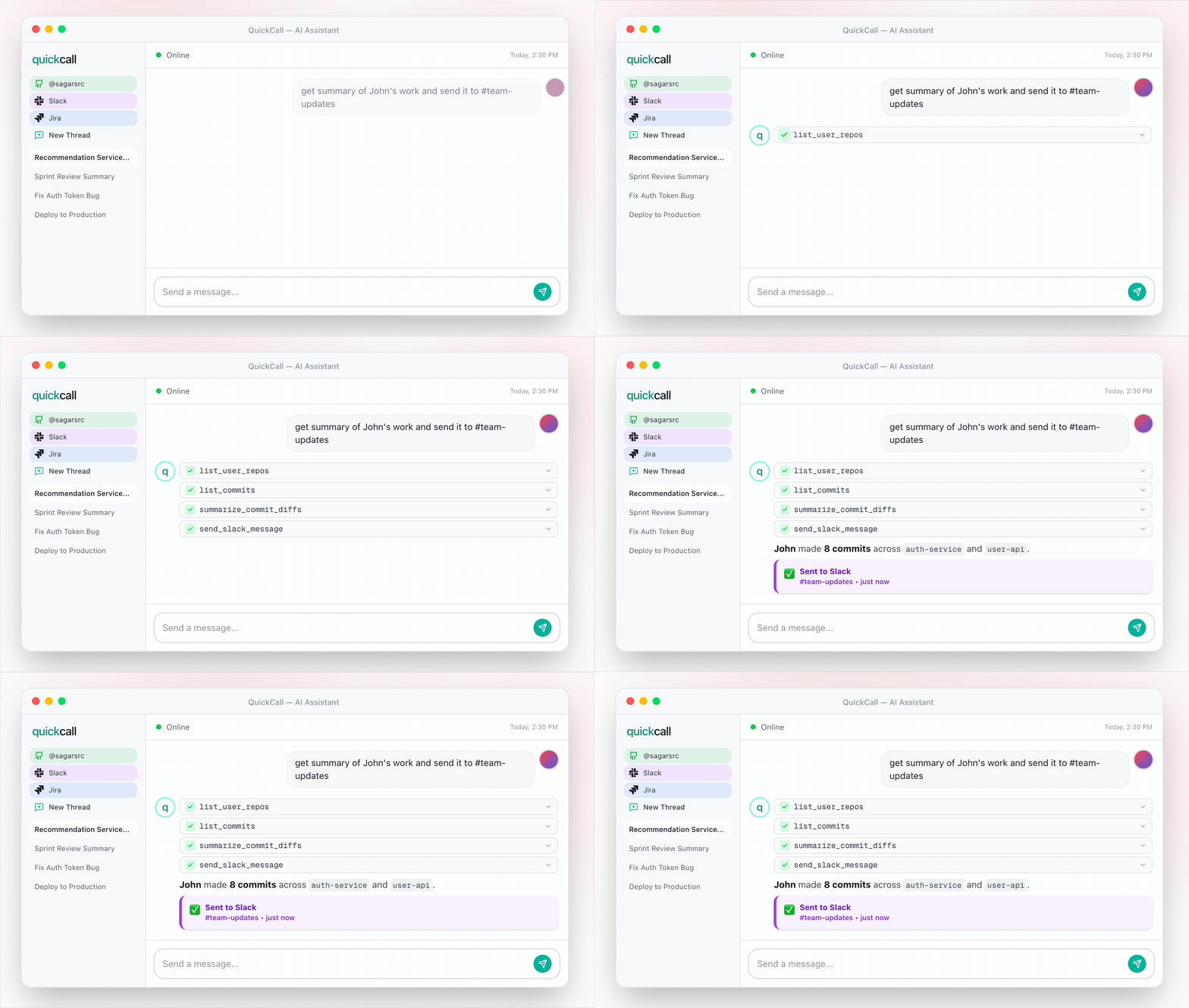
"Give me my daily update" -> It fetches your commits, analyzes the diffs, and tells you exactly what you shipped today.
"Send a summary to #engineering on Slack" -> Your standup update is already there.
It's not magic. It's MCP doing the heavy lifting while Quick Call orchestrates the tools and figures out what you actually want.
The Two Superpowers (For Now)
GitHub Integration
Quick Call plugs into your GitHub via OAuth and gives you conversational access to:
- List your repos: "Show me my active projects"
- Check commits: "What did I commit yesterday?"
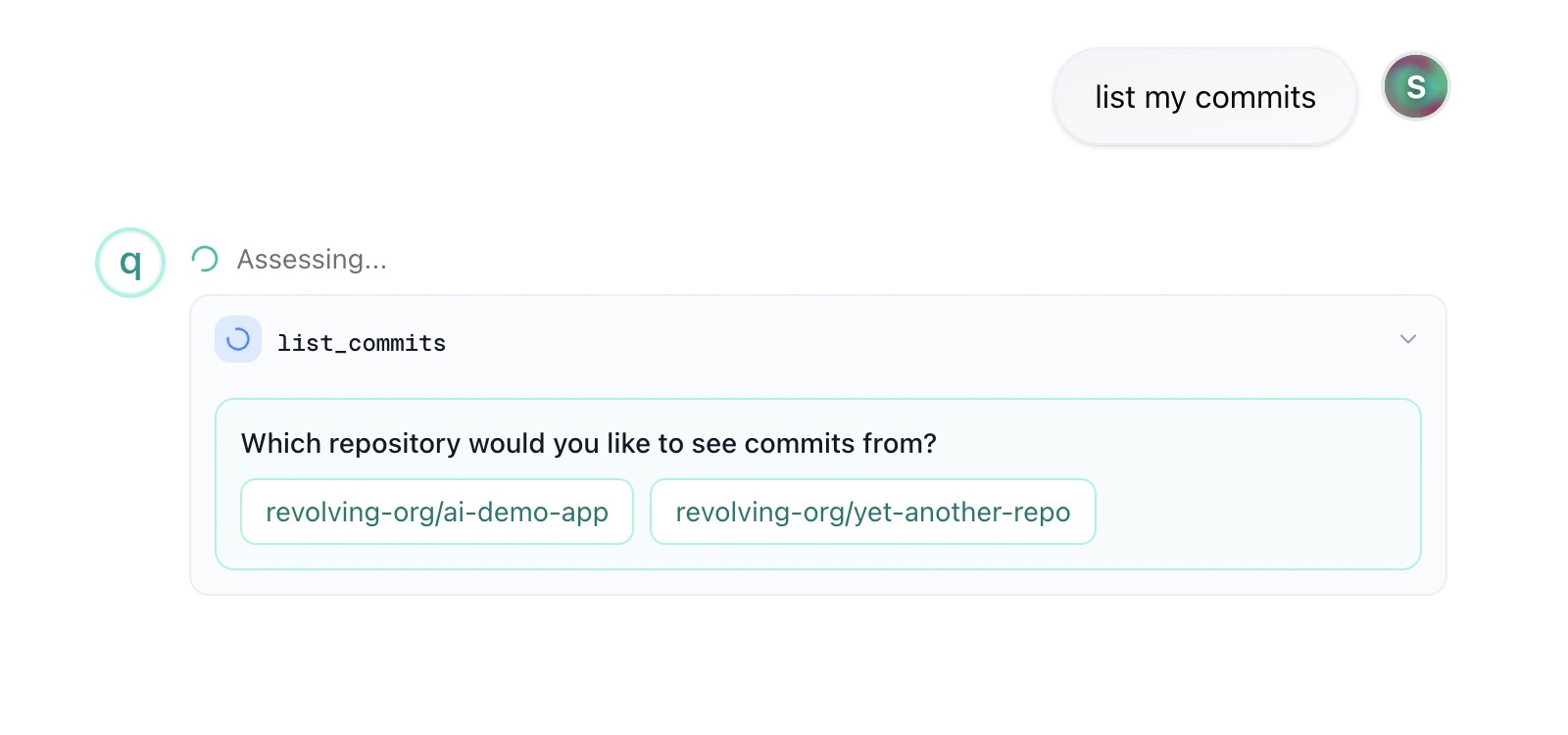
MCP elicitation to get user input for the list_commits tool
Notice how the user did not specify which repo to list commits from. This is where MCP comes in to get the user input for the list_commits tool.
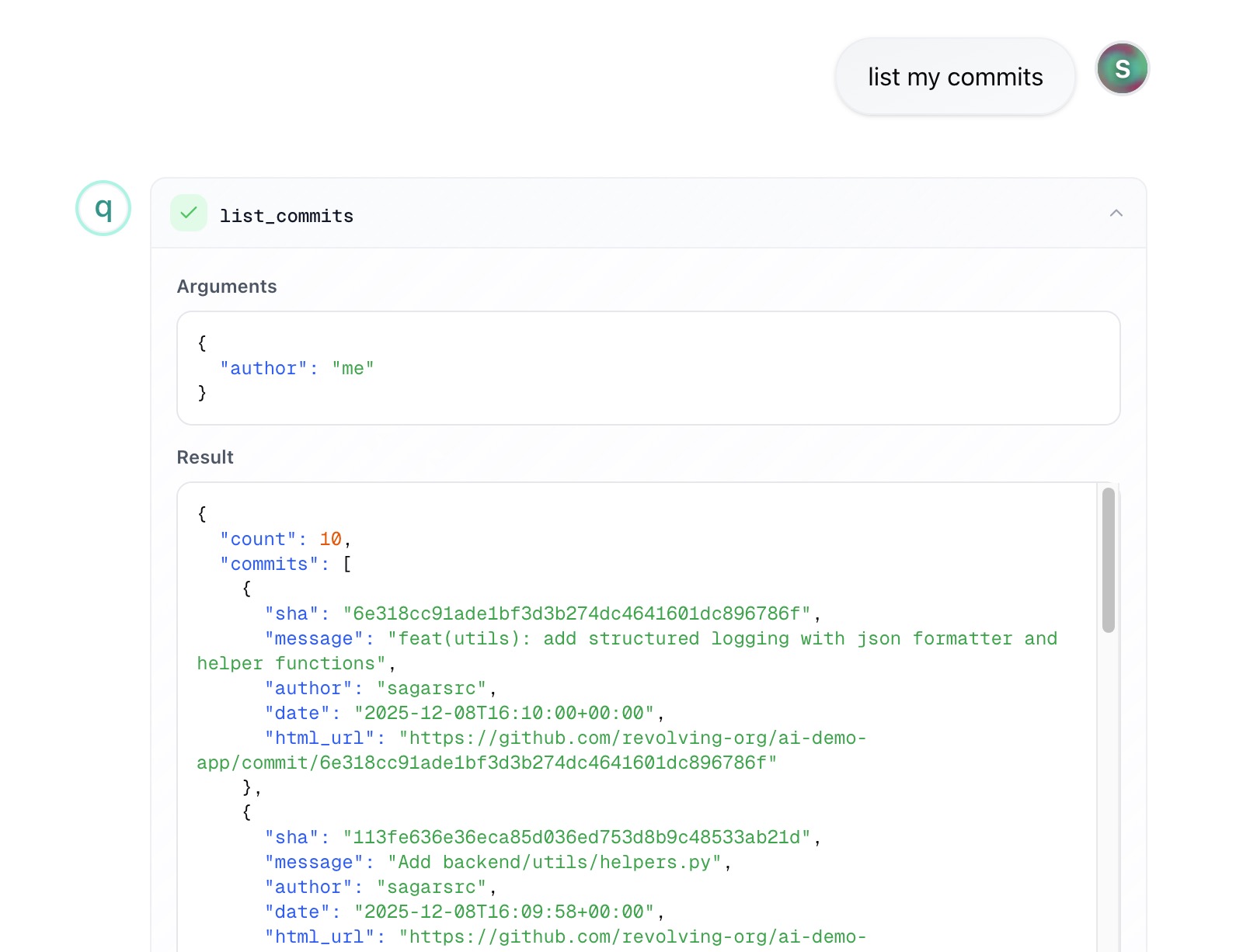
MCP function call in action
Once the MCP tool has all the inputs needed, it completes the function call and returns the result to the user.
Slack Integration
Same deal as GitHub. OAuth flow, store your tokens, and now you can:
- List channels: "What channels am I in?"
- Send messages: "Post 'Deploy successful' to #devops"
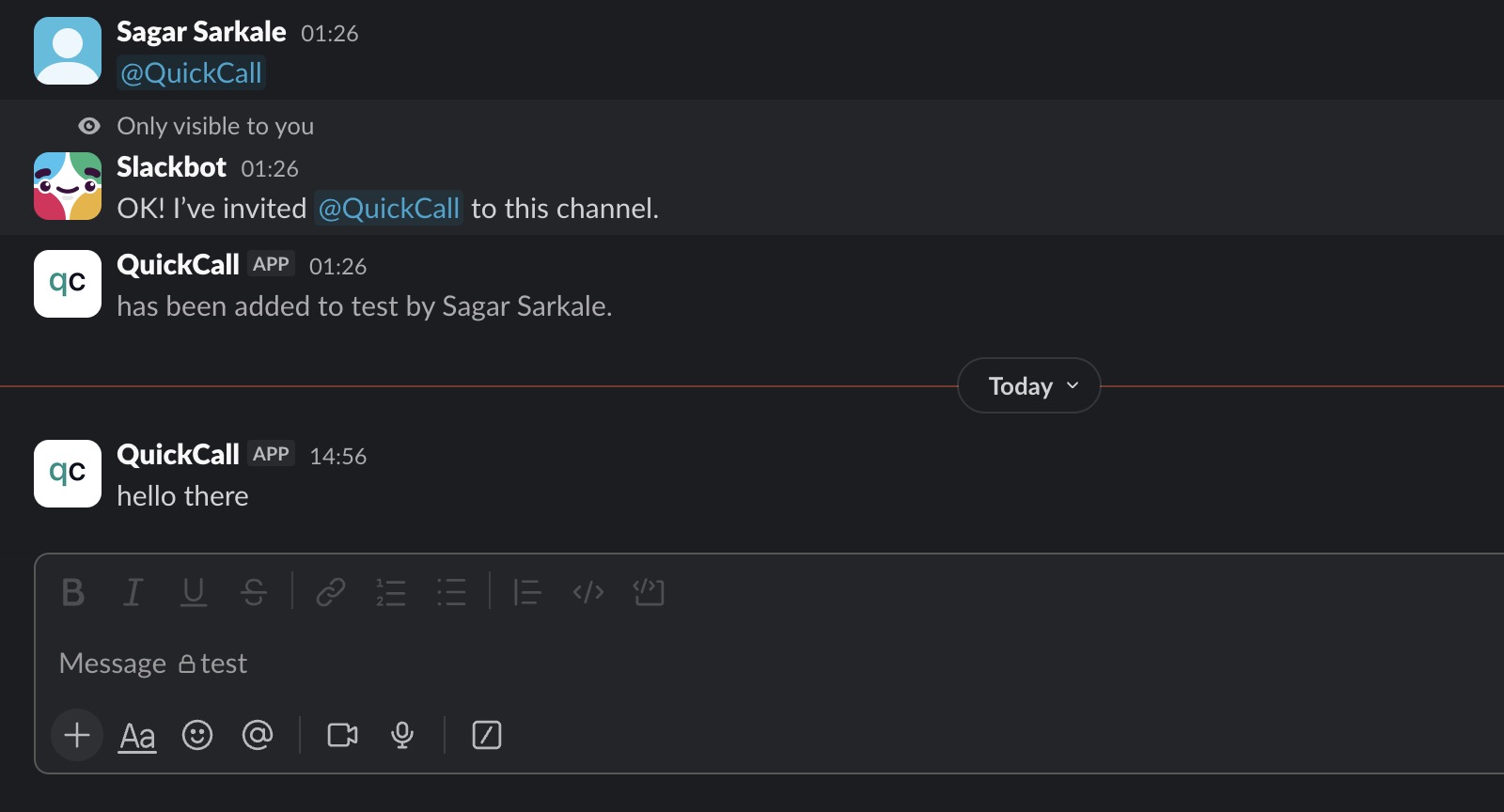
Sending messages via Quick Call
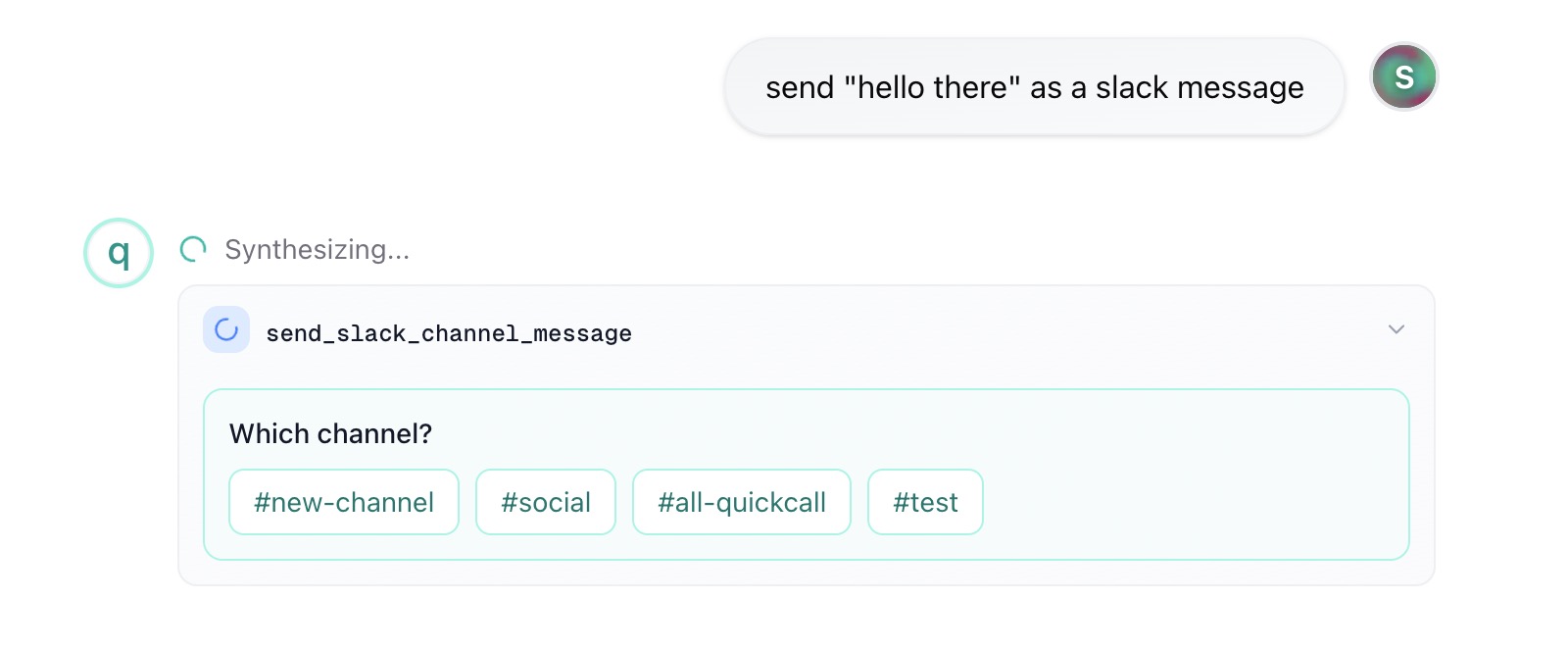
Function call to send the message
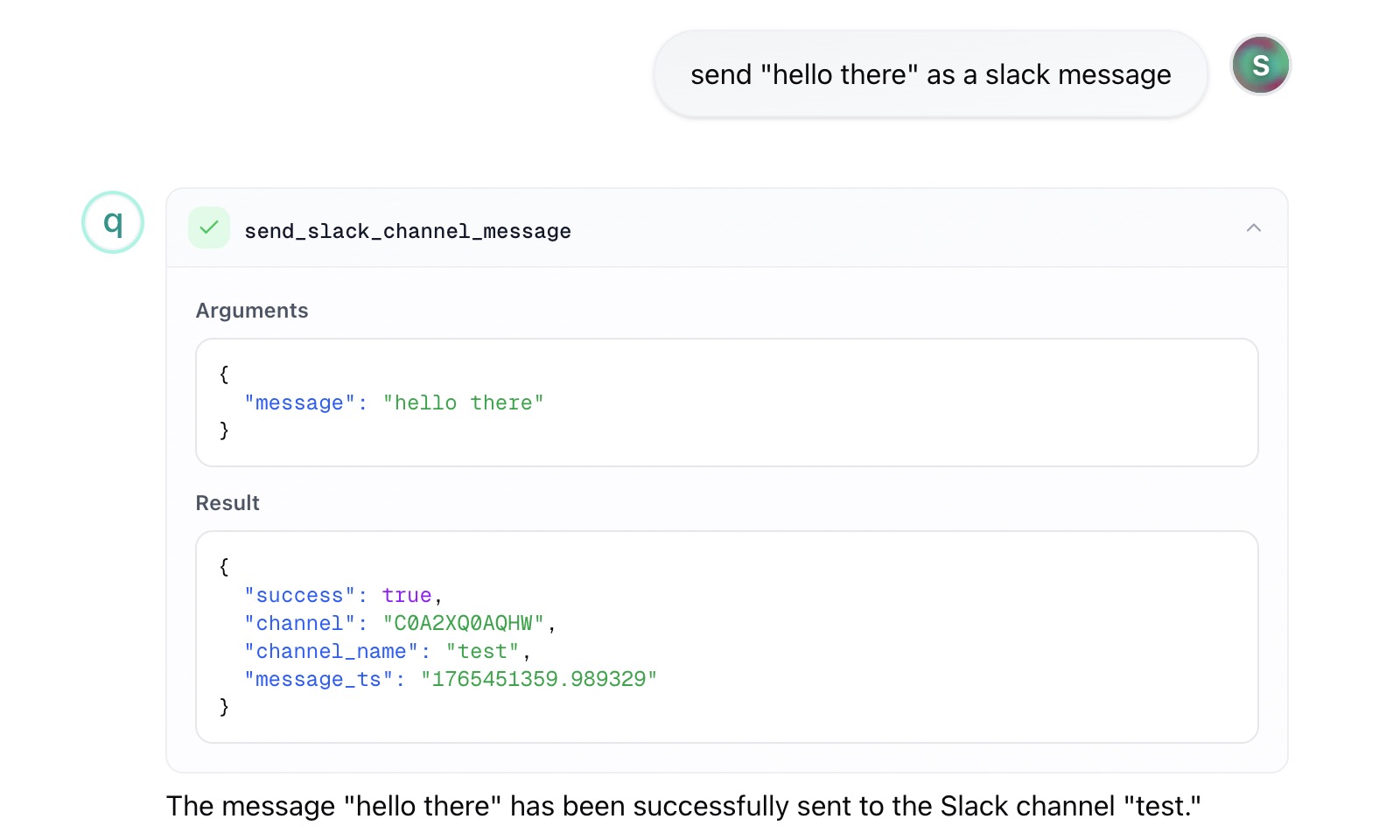
Sent message via Quick Call
Tool Chaining: Where It Gets Interesting
Individual tools are useful. But the real power is when they work together.
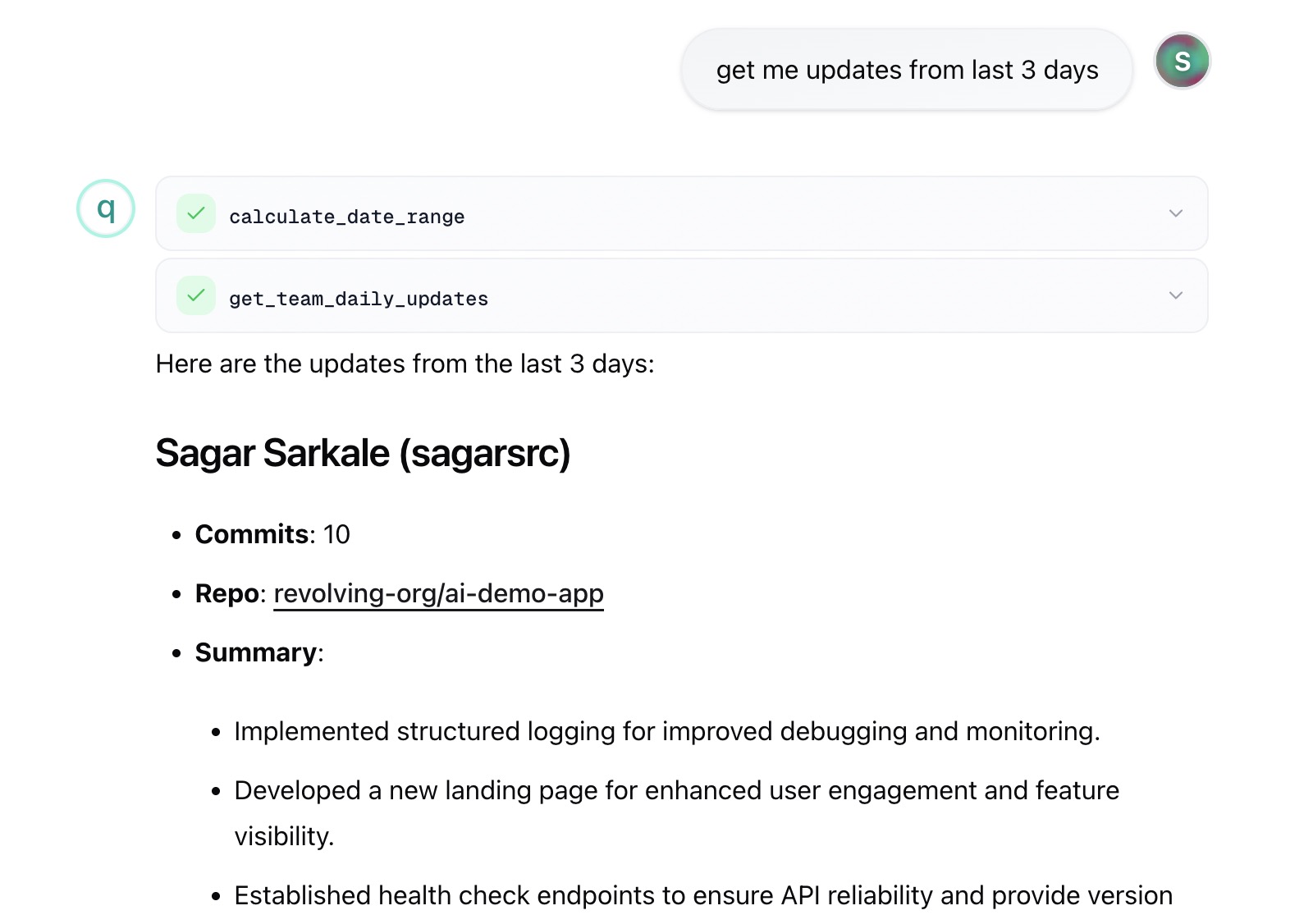
"Summarize my work this week" - sounds simple, but here's what actually happens:
list_commitsfetches your commits from the past weekget_commit_diffsgrabs the file-level changes for each commit- The AI aggregates stats (lines added/deleted, files changed)
- Then it summarizes everything into a readable report
- And sends the summary to Slack
You asked one question. Quick Call made multiple tool calls, chained them together, and gave you the result. The AI decides which tools to call and in what order.
Workflow in action for a Developer
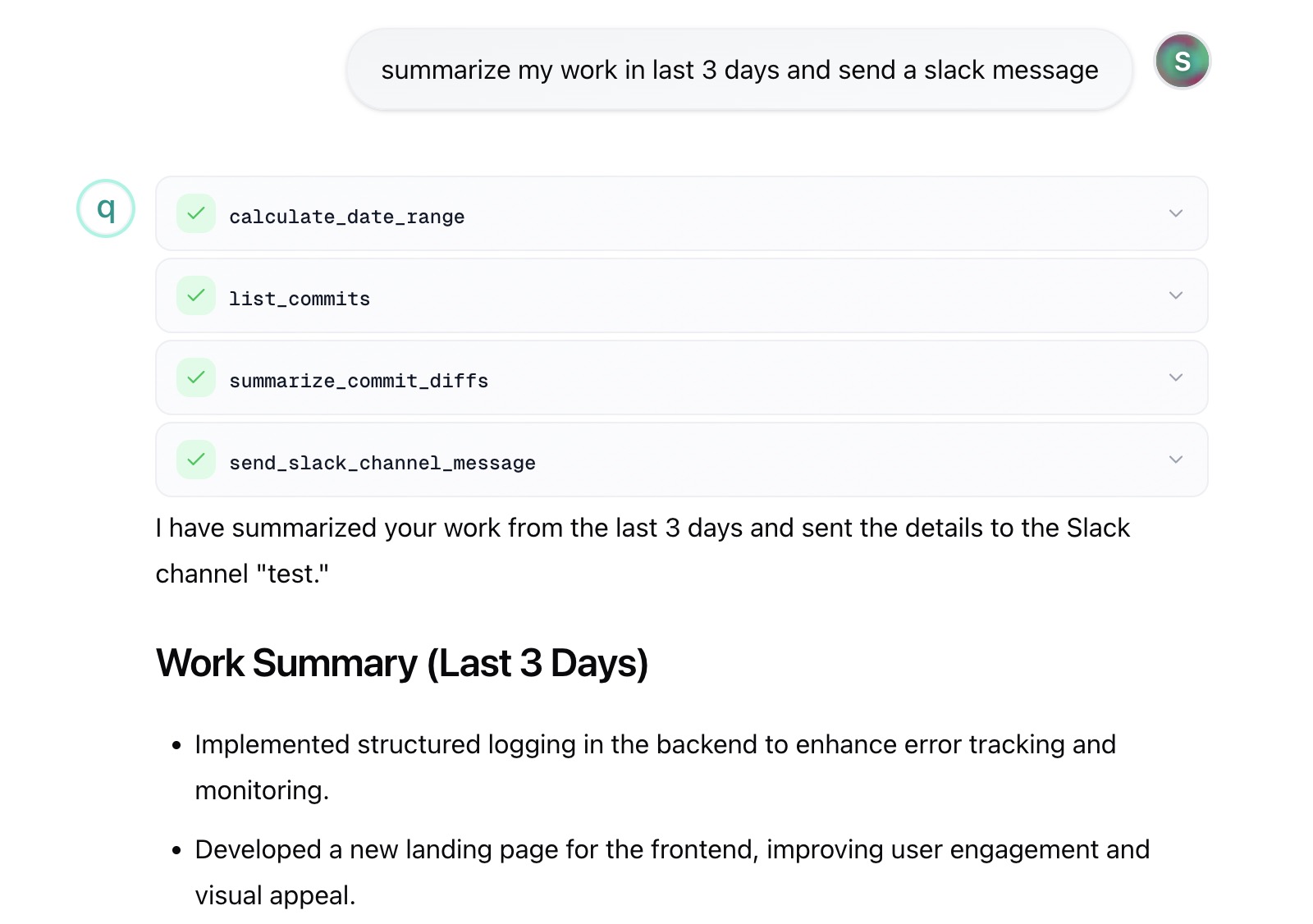
Workflow in action for a Product Manager
Why This Matters
It's 9:45 AM. Standup in 15 minutes. "What did you work on yesterday?"
You could scramble through GitHub commits, grep your terminal history, piece it together manually...
Or you ask Quick Call and it sends it directly to Slack. Standup = crushed.
The MCP Magic
Here's where Part 1 theory meets Part 2 practice.
Quick Call is built on three separate services:
- Frontend: The chat UI you interact with
- Backend: Handles auth, database, and talks to OpenAI
- MCP Server: The bridge to GitHub and Slack
When you ask a question, here's what happens:
OpenAI doesn't know how to call GitHub's API. But with MCP:
- The MCP server exposes 40+ GitHub tools (list repos, get commits, update issues, etc.)
- OpenAI discovers these tools automatically via the MCP protocol
- When OpenAI decides it needs data, it calls the right tool
- The MCP server authenticates with your GitHub token, fetches the data, and returns it
- OpenAI gets structured JSON back and narrates it to you
This is the killer feature of MCP: You're not hardcoding API calls or writing custom integrations. You define tools once, and the AI figures out how to use them.
Coming Soon
- GitHub Projects integration: "Move issue #20 to In Progress" - manage issues without leaving the chat
- Export to Notion: Turn your daily updates into formatted docs
Try It Yourself
Quick Call scratches my own itch. If it helps you too, awesome.
It's live at quickcall.dev. Try it out and let me know what you think. Always open to feedback.